
Managing your billing information is essential for maintaining uninterrupted access to your software and subscriptions. Follow this guide to add a new payment method or remove a card from your PC App Store account.
Step 1: Access Your Account Settings
There are two ways to navigate to your account profile, depending on your current view:
Option A (From the Taskbar):
1. Locate the PC App Store icon in your system tray (click the arrow icon "Show hidden icons"). Right-click the icon and select My Account from the pop-up menu.
Option B (From the Email):
Locate the confirmation email with the subject "Your PC App Store account (#your Client ID)" sent to your inbox, as shown below. This email contains the temporary credentials you will need for your first login:
This is the registered email address you used during sign-up (e.g., your email@dmain.com).
A system-generated password (labeled as your password) is provided for your first access.
Click the large blue Go To My Account button in the email to be automatically directed to the login interface.
Your browser will prompt you for permission to launch the external link.
A dialog box will appear asking to "Open PC App Store Runtime?"
Click the blue Open PC App Store Runtime button to grant permission.
Tip: Check the box for "Always allow pcappstore.com..."
- so you do not have to repeat this authorization step during future login sessions.
After that PC App Store application will open on "My Apps" page of your account.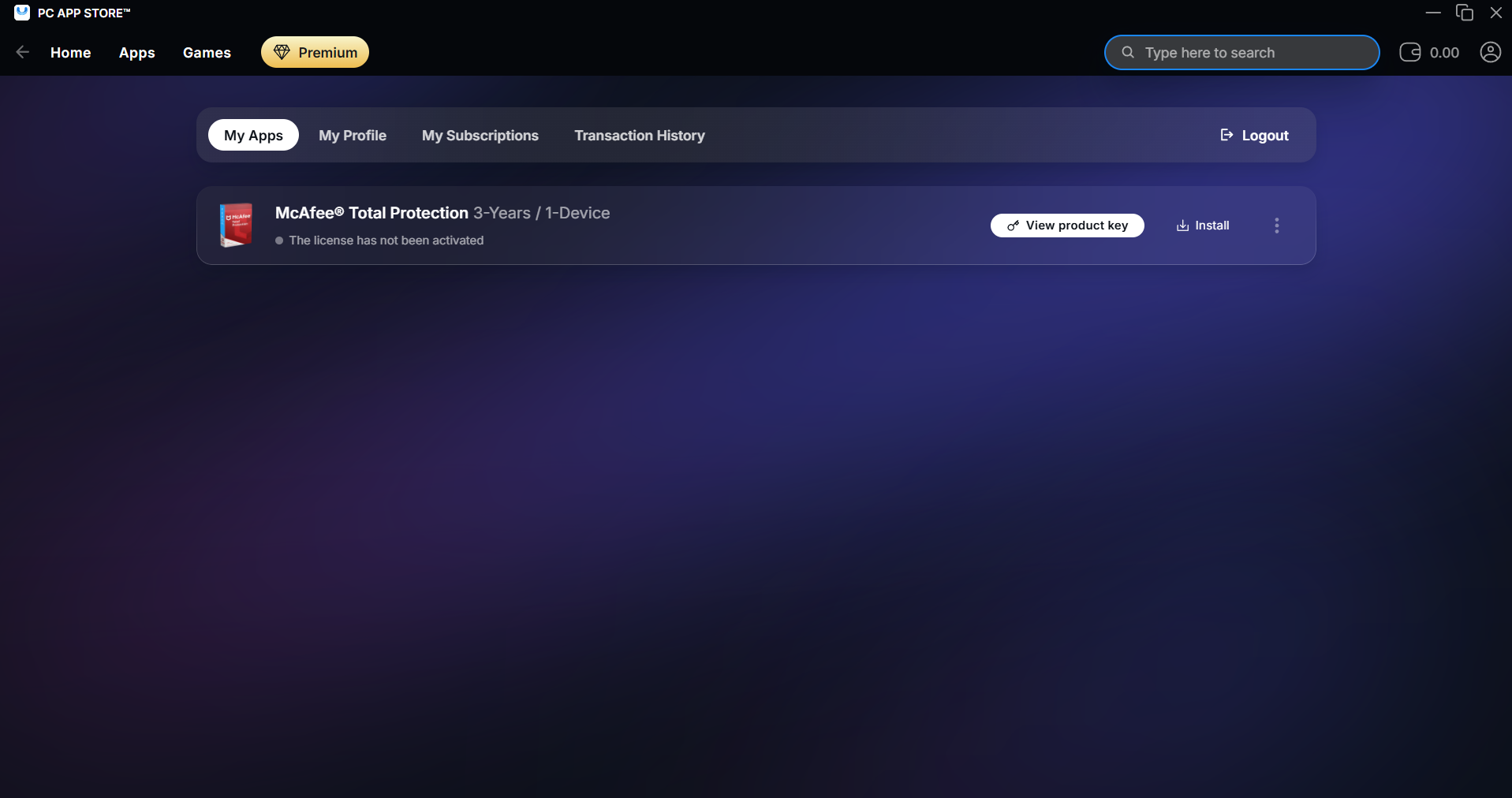
Step 2: Add a New Payment Method
If you need to add a new credit or debit card to your account:
Go to the "My Profile" and from there select "Payment Method" section.
-
Click on the blue Add payment method button on the right side of the section.
Enter your new card details, including the Card Number, Expiry Date (MM/YY), and CVC code.
Click the blue SAVE button to securely store the new card in your account.
Step 3: Remove an Existing Card
If you wish to delete a card that is no longer in use:
Locate the card you want to remove in the MY PAYMENT METHODS list.
Click the (X) icon located on the far right of the card entry.
A confirmation window will appear.
When you submit a request to remove your payment method or completely close your billing account, a policy confirmation prompt will appear. This window outlines how your remaining notice period affects final billing before the payment detail can be wiped from the system.
If you agree to the notice period timelines and the calculated final balance, click the white Agree and Proceed button to finalize the removal of your payment method.
If you change your mind or want to review your active subscriptions first, click the blue Cancel Request button to safely back out without making changes.
You can read our complete policy by clicking here: Terms & Conditions
We hope this article was helpful. If you need more assistance or have more questions, our 24/7 support is always available through email support@pcappstore.com , live chat, or phone:
Canada: 1 800 828 1299 International: +1 419 731 6666 United States: 1 800 828 1299 United States: 1 800 828 1299
Comments
0 comments
Please sign in to leave a comment.